
How to download RAM? (For Real!)
Published:
DISCLAIMER: This is a joke. Please do not try this at your computer.
Introduction, and Motivation
The RAM prices are increasing very rapidly for the past few months. I was thinking about how to get more RAM for my computer without spending a lot of money. Then I thought, why not download RAM from the internet? After all, everything is digital nowadays, right? So, after talking with some friends (ChatGPT and Gemini), I found a way to download RAM. Here’s how you can do it too!
What you need:
- A computer with internet access
- A linux distribution (I’m using Debian in a virtual machine for this experiment)
- An internet cloud storage account (like Google Drive, Dropbox, etc.)
- Patience.
What you get:
- More RAM (Theoretically)
- A fun experience (Definitely)
Here’s the initial setup of my computer before downloading RAM, scraping by with only 4GB of RAM:

Steps to Download RAM
We ask the question to ourselves, what is RAM really? RAM is a type of computer memory that is used to store data temporarily while the computer is running. So we need to find a way to store data temporarily on cloud storage. Here’s how we can do it:
- Step 1: Sacrifice a Cloud Storage Drive
First, you need to sacrifice a cloud storage drive. This means that you need to create a new cloud storage account and dedicate it to be used as RAM. Make sure that this storage is empty. For this example I will use a Google Drive account.
- Step 2: Mount the Cloud Storage as a Filesystem
There is a tool called rclone that allows you to mount cloud storage as a filesystem. You can install it using the following command:
sudo apt-get install rclone
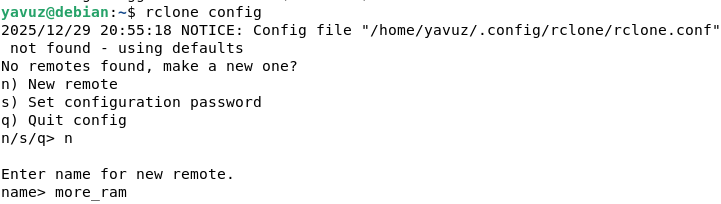
After installing rclone, you need to configure it to connect to your cloud storage account. You can do this by running:
rclone config
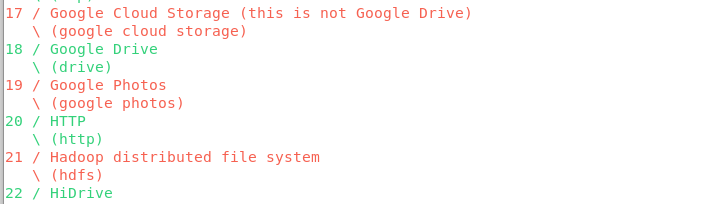
Follow the prompts to set up a new remote connection to your cloud storage. Carefully follow the instructions provided by rclone to authenticate and authorize access to your cloud storage account.
Once configured you should see something like this:
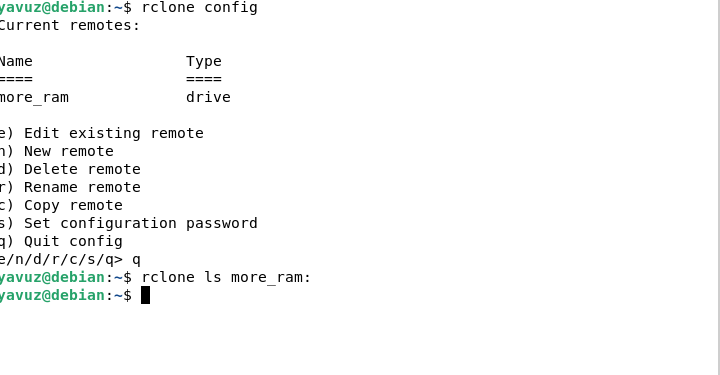
- Step 3: Create a Mount Point
The hard part is over, now we need to create a mount point on your local filesystem where the cloud storage will be mounted. You can do this by running:
mkdir ~/cloud_ram
Now you can mount the cloud storage to the mount point you created. You can do this by running:
rclone mount more_ram: ~/cloud_ram --vfs-cache-mode writes &
After this command, your cloud storage should be mounted to the ~/cloud_ram directory. Now we can use this directory as Swap space. This means that when your computer runs out of RAM, it will use the cloud storage as temporary memory. To create a swap file on the mounted cloud storage, you can run:
dd if=/dev/zero of=~/cloud_ram/swapfile bs=1M count=4096
After creating the swap file, you need to swap it on by running:
sudo mkswap ~/cloud_ram/swapfile
sudo swapon ~/cloud_ram/swapfile
Plot Twist: Reality Strikes Back
I wish I could say this was the triumphant end of our RAM-downloading journey. Spoiler alert: it’s not. As I was writing this very blog post, following along with my own brilliant instructions, I hit a wall. A kernel-shaped wall, to be precise.
The Linux kernel, in all its wisdom, refused to cooperate with network-based swap files. I wasn’t successful with my task despite trying various workarounds—the unreliable network latency and speed made this dream impossible. It was a fun experiment, but in the end, I had to accept defeat. The last state of the system is below.
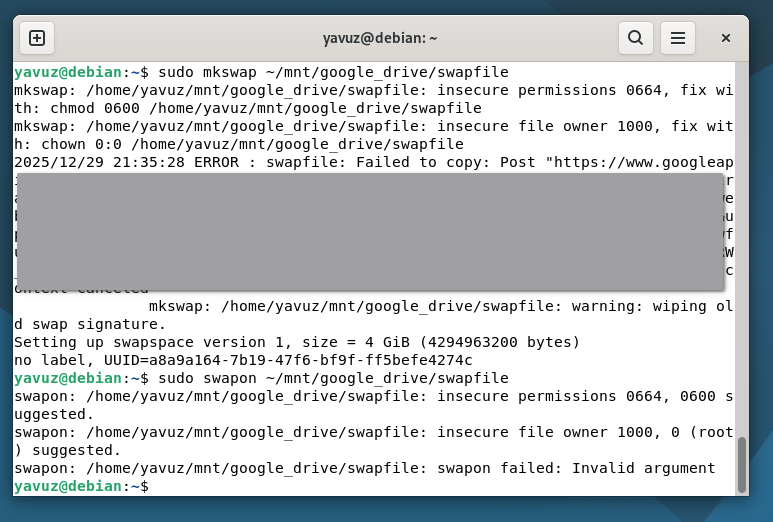
Alas, our journey here with downloading RAM has come to an end. I couldn’t achieve the desired outcome but I had fun trying. Well RAM prices were hard but the failed experiment hurt more. As for why you shouldn’t try this at home:
Swap is not RAM. Using swap space is significantly slower than using actual RAM, especially when the swap space is located on a network drive. This can lead to performance issues and system instability. Your system may become unresponsive if it relies heavily on swap space, which was the ideal outcome of this experiment. I allocated 4GB of RAM to the virtual machine running this experiment so that it would be easier to run out of RAM and use the swap space.
Step 4: Contemplate Life Choices
After realizing that downloading RAM is not feasible, take a moment to contemplate your life choices. Reflect on the time and effort spent on this experiment and consider your choices moving forward. Maybe the real treasure was the friends we made along the way.
Conclusion
Don’t try to download RAM.